The following tip offers a helping hand for beginners. Commands you give may sometimes bring an unwanted result. Or you may mess up a photo by unintendedly erasing an area. In such cases, you will want to step back to an earlier stage, perhaps start over retouching the picture from the very beginning. What should you do?
The easiest way to restore an earlier stage is the History palette in the lower right corner of the screen. Click the History tab to activate it and to display all the changes you have made to your current photo. If you cannot see the palette, click Window/History to show it.The History palette displays the stages of your picture in steps. All steps bear the name of the event that produced them. For example, clicking the Unsharp Mask step restores the picture into the state resulting from the Unsharp Mask filter action. That is, the sharpening will be visible in the image, but not the actions that followed. If you carry out a new command after stepping back, it will take the next step on the palette, and all the following steps in the queue will disappear.
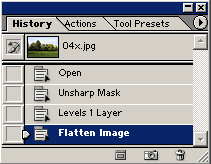
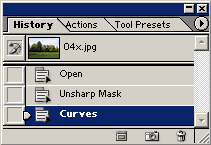
Let’s see an example. We’ve done some sharpening on the photo, then created a Levels correction layer, and finally merged the two layers. You can see the queue for this sequence above. Looking back, we are not satisfied with the results of the correction layer (Levels 1 Layer), so we step back to the Unsharp Mask stage. Now we issue a new command, say, Curves. The steps Levels 1 Layer and Flatten Image disappear from the queue and we cannot return to them. The Curves command takes over their place as the last step after Unsharp mask.
The Open stage restores the original state of the picture just after loading it.
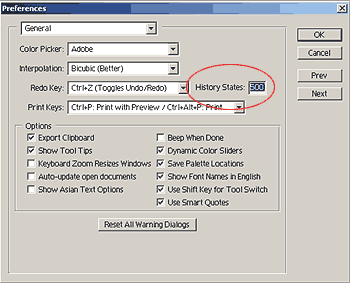
The History palette stores the last 20 steps by default. All brush strokes and any clicks resulting in changes are counted as steps, so a complex retouching action may even consist of hundreds of steps. If you want to store more steps in the queue, you can set the desired value under Edit/Preferences/General. You can store several hundred steps, but such high values consume an awful amount of memory.
The next Undo tip will introduce an unbelievably simple and very underrated menu command.