This time it is not a small object like power lines, but a larger area that we’re filling with texture. Again, Clone Stamp and Healing Brush are going to be our tools. These can be used nicely together as they often augment each other well. The following article is a fine example.
Load the photo in Photoshop
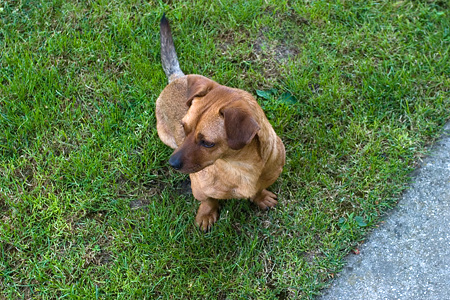
This time the problem can be seen in the lower right corner where the grey asphalt of the pavement intrudes. We want to conjure a uniform grass texture to the image. Of course, no magic is involved.
Turf
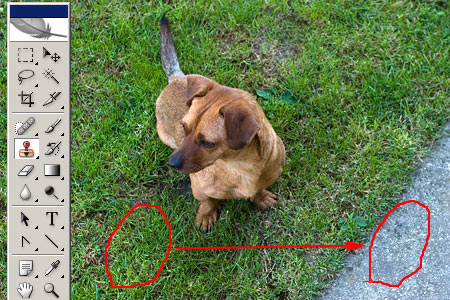
This is where Photoshop’s Clone Stamp tool (press S to activate) comes in. You can use this tool to take a sample from any picture area and copy it to another by simply painting.
First, use the option bar to choose a mid-sized, soft Brush, and select Aligned. As the picture in our example was pretty small, we used a brush of 25 pixels. On larger photos, brushes of 100 to 200 pixels in size can be used, especially if you need to fill a large area and if you have another large one to take a sample from.
After specifying the settings, left click the sample area while pressing ALT. This will be your starting point. Bring the pointer to where you want to copy the sample (for us, it is the edge of the pavement) and paint over it. As you paint, the sampled grass texture appears.
Work in small steps, and if you reach an area you don’t want to copy (for us, it is the dog), release the mouse button and press it again. This restarts the cloning from the starting point. During the painting, you can specify new cloneable points from other parts of the turf (ALT+left click), so that a not exactly identical texture will be shown in the right corner.
Spot effect
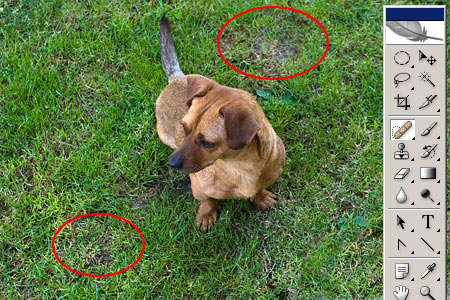
There are but smaller refinements left: for example, the original photo includes a few spots of dingy grass to be removed. For this task, select the first icon in the group above your previous tool: the Spot Healing Brush Tool (or press J). If another icon is active in the group, hold the mouse button on the icon. In the option bar, once again choose a mid-sized soft brush, and under Type , select Proximity Match.
All you have to do is paint over those dingy grey areas. After releasing the mouse button, Photoshop fills the spots with textures similar to the neighboring areas.
The green, green grass of home
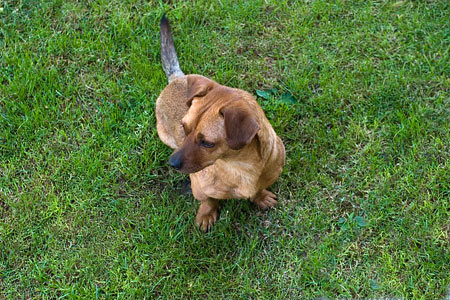
Our dog now resides on a continuous green turf. The picture has become much more uniform and attention is not diverted by the grayness of the corner. Did we cheat? No doubt. Was it worth it? Definitely.