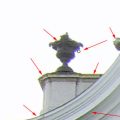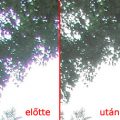
Although we are no fans of single-step editing methods, this will be something similar. Such methods have the advantage of speed at the cost of accuracy. The latter, in this case, also depends on the editor. This procedure can be useful primarily when dealing with monochrome color runs. The Offset command shifts a single color channel in the specified direction, thereby reducing the color defects (discolored edges).
Load the photo in Photoshop
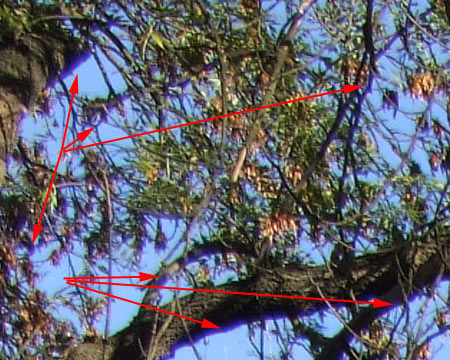
This time, we chose a picture part—in 100% zoom—which clearly depicts today’s foe, the blue-purple color defect. Particularly problematic locations have been marked by red arrows. You can also see that, as opposed to regular chromatic aberration, the phenomenon is mainly represented by a single color. There are no opposite-color borders along the other sides of high-contrast edges. This way, the defect only concerns a single color channel—the blue one. By shifting the blue color channel in the opposite direction, we are likely to reduce the annoying discolored edges.
Before starting off, observe the width of the edges and the direction of the color runs, since these will be crucial for shifting the color channel. In this example, the defect drags 3 to 4 pixels slightly to the left, so we’ll need a little offset downwards and to the right.
Getting the blues
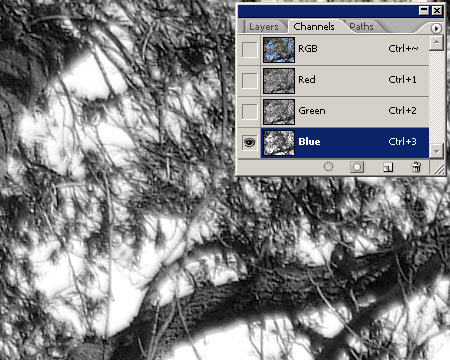
Select the blue channel on the Channels palette as this will be the channel you have to adjust.
Offset
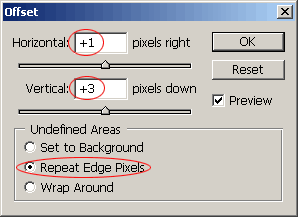
Click Filter/Other/Offset. This command will be used to shift the blue channel’s content slightly in the opposite direction.
In the dialog, set Horizontal to +1. Thisprovides an offset of 1 pixel to the right. Set Vertical to the width of the color defect. This time it is +3, which means a downward shift of 3 pixels for the blue channel. Left and upward offsets are available through negative values.
From the radio buttons, select Repeat Edge Pixels. The offset produces a small border along the image edges, which will this way be filled up repeating the outermost pixels. Set to Background fills this empty area with the background color, while Wrap Aroundcopies there the pixels that were “cropped” because of the offset.
When you’re done, return to the Channels palette and select the RGB view.
Close to perfect

The result shows something like what we expected. The bluish color borders were decreased significantly and thus became less annoying. For any further refinements, we recommend using the previous two color defect removal methods we described, but much of the work has been done already.